Table of Contents
- 1. What you actually need before plugging in
- Hardware checklist
- Network checklist
- 2. Push vs pull mode - and why push wins
- 3. Step-by-step setup (push mode, ZKTeco example)
- 4. Sync settings worth getting right on day one
- 5. Common things that break (and how to fix them)
- The device shows "Server connection failed"
- Punches show up in NepalHRM but with the wrong employee
- Late punches missing for a few minutes
- Bulk re-enrollment is taking forever
- 6. Multi-location teams
- 7. The setup checklist (copy this)
- Want to try it before you buy a device?
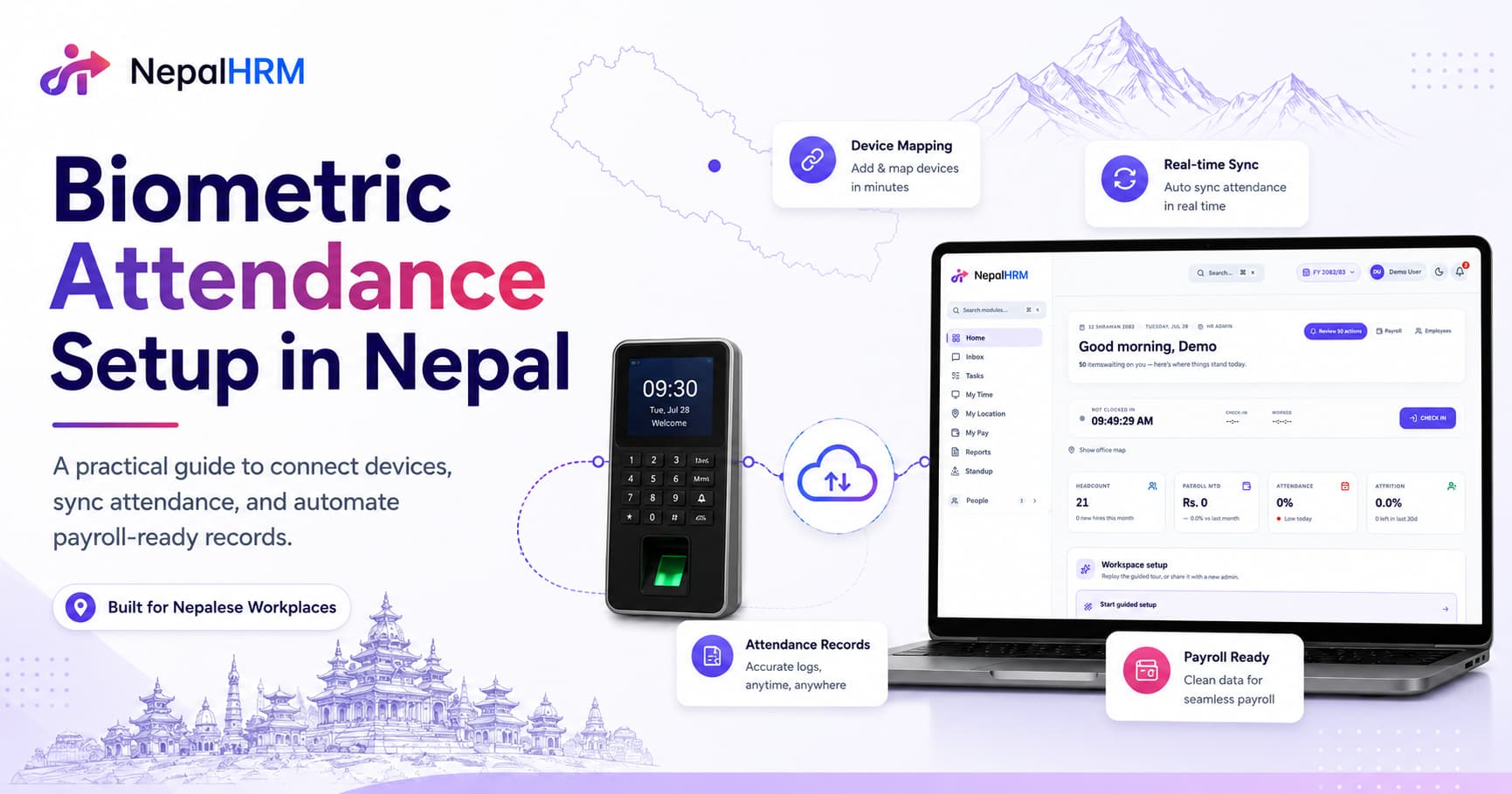
Quick Summary: Most Nepali HR teams can connect a ZKTeco or Hikvision device to NepalHRM in under 60 minutes. The fastest path is push mode - the device pings the server whenever someone scans, so payroll always has fresh hours. The slowest path is USB CSV exports - skip it.
1. What you actually need before plugging in
Most setup horror stories in Nepal come from skipping one of three things: a static-IP-friendly network port, a power-protected outlet, and a device manual you haven't lost. Get those before you start.
Hardware checklist
The biometric device - ZKTeco and Hikvision units are the two makes NepalHRM supports, and both are common in Nepal.
Adapter + a UPS or surge protector. Nepal's grid is fine on a good day; you do not want to find out which day isn't.
Ethernet cable from the device to your office router/switch. Wi-Fi works on some models but is unreliable for daily payroll-grade attendance.
An admin password for the device that isn't the box default. Change it before anything else.
Network checklist
A static LAN IP for the device (e.g.
192.168.1.50). If your router only does DHCP, reserve a lease for the device's MAC address.Your HRMS server endpoint reachable from the office network. For NepalHRM this is provided in Settings > Integrations > Biometric.
Outbound HTTPS open to your HRMS (port 443). No special firewall rules are needed for push mode.
2. Push vs pull mode - and why push wins
Every modern biometric device supports two integration patterns. Pick correctly and you'll never think about attendance reconciliation again.
Mode | How it works | Pros | Cons |
|---|---|---|---|
Push (recommended) | Device POSTs every scan to your HRMS in near real time using the manufacturer's push protocol, which on a ZKTeco unit is PushSDK. | Instant attendance, zero manual sync, server-side audit trail | Needs outbound internet from the device |
Pull | HRMS polls the device every N minutes via SDK or HTTP | Works without internet on the device side | HRMS must reach the device; harder for multi-branch |
USB / CSV export | HR exports to USB, uploads CSV to HRMS once a month | No setup | Stale data, manual reconciliation, formula errors, missed late-comers - the exact spreadsheet pain HRMS was supposed to remove. Avoid. |
3. Step-by-step setup (push mode, ZKTeco example)
Below is the exact flow we walk customers through. The same shape works on a Hikvision unit. Menu names differ, the order is identical.
Power on the device. Set the time zone to
Asia/Kathmanduand date format to BS or AD per your HR convention. NepalHRM accepts both.Set a static LAN IP. On ZKTeco: M/OK > Comm > Ethernet. Disable DHCP, set IP / subnet / gateway / DNS. Test with
pingfrom your laptop.Enable push (cloud) mode. On ZKTeco: Comm > Cloud Server Setting. Toggle Enable Domain Name on, enter the NepalHRM endpoint shown in Settings > Integrations > Biometric > Add device. Enter the device serial number exactly as printed on the back.
Add the device in NepalHRM. Open the live demo at /try and head to Attendance Policies > Devices > New device. Paste the serial number, give it a friendly name (e.g. "HQ Reception"), and assign a default shift / location.
Enroll fingerprints / faces. On the device: User Mgt > New User. Use 6-digit IDs that match the employee codes already in NepalHRM. NepalHRM will auto-link by employee code on first scan.
Verify the first scan. Have one person clock in. In NepalHRM, refresh Attendance > Today within 30 seconds - the punch should appear. If it doesn't, jump to the troubleshooting section below.
Roll out to the rest of the team. Bulk-enroll the next morning. Most teams of 50-150 people can finish enrollment in 2-3 hours.
4. Sync settings worth getting right on day one
These are the toggles that decide whether your finance team curses biometric attendance for the next year, or forgets it exists (in a good way).
Round to nearest 5 minutes - smooths out micro-variances when 30 people clock in at once.
Treat first scan as IN, last as OUT - prevents accidental double scans from blowing up overtime.
Auto-flag late after grace period - usually 10 minutes for general shift, 0 minutes for night / critical operations roles.
Auto-flow into payroll - on. There is no reason in 2026 for a human to copy attendance into a payroll spreadsheet.
Mobile GPS check-in for remote / field staff - pair it with the biometric device so HQ employees scan and field employees clock in from the mobile app. Same source of truth either way.
5. Common things that break (and how to fix them)
The device shows "Server connection failed"
90% of the time this is DNS or a typo in the cloud server URL. Re-enter the URL exactly as shown in NepalHRM. If your office uses a captive portal or HTTP proxy, ask IT for an allow rule for your HRMS domain.
Punches show up in NepalHRM but with the wrong employee
The device user ID isn't matching the employee code. Open the employee in NepalHRM and set Biometric ID manually. Going forward, enroll using the employee code as the device user ID and you'll never see this again.
Late punches missing for a few minutes
Probably a clock drift. Biometric devices forget the time after a power cycle. NepalHRM auto-corrects, but you can set the device to fetch NTP time from time.nist.gov or your office router.
Bulk re-enrollment is taking forever
Use the fingerprint template export / import feature on the device. Templates are portable across most ZKTeco units. Export from the old device, import into the new one - employees don't need to re-enroll.
6. Multi-location teams
If you have 2+ offices (Kathmandu HQ + Pokhara branch is a common pattern), put one device in each location and tag it with that Branch / Location in NepalHRM. Reports, payroll, and shift compliance will automatically split by branch while still rolling up to the company.
For factories or sites without internet, you can also fall back to local pull mode with a small bridge device - get in touch and we'll spec it out.
7. The setup checklist (copy this)
Device powered, time zone set to Asia/Kathmandu
Static LAN IP assigned, DNS reachable
Cloud server URL pasted from NepalHRM exactly
Device serial added in NepalHRM Settings > Biometric
Default shift & branch assigned
One employee enrolled and clocked in successfully
Bulk enrollment scheduled for the next morning
Auto-flow into payroll turned on - the whole point of the exercise
Want to try it before you buy a device?
You can click through the entire NepalHRM workspace - including the biometric integration UI - in our no-login live demo. Or book a 30-minute demo and we'll connect a real device to your own data live on the call.